
Prompt
Prompts define how your AI Human interacts with users. They control the system instructions sent to the Large Language Model (LLM) that generates responses during conversations.
💡 Overview
Prompts are essential for customizing the personality, tone, and behavior of your AI Human. You can create multiple prompts for different use cases and select the appropriate one when creating sessions.
🗒 Listing Prompts
Navigate to the Resources page and select the "Prompt" tab to view all prompts in your organization.
The list displays:
- Prompt ID: Unique identifier for the prompt
- Name: The name you assigned to the prompt
- Created At: When the prompt was created
- Last Used At: When the prompt was last used in a session
- Action: Delete button to remove the prompt
🔎 Viewing Prompt Details
Click on a Prompt ID to view its details. From the detail page, you can:
- View the full system prompt
- Edit all prompt fields
- Delete the prompt
💭 Creating Prompts
To create a new prompt:
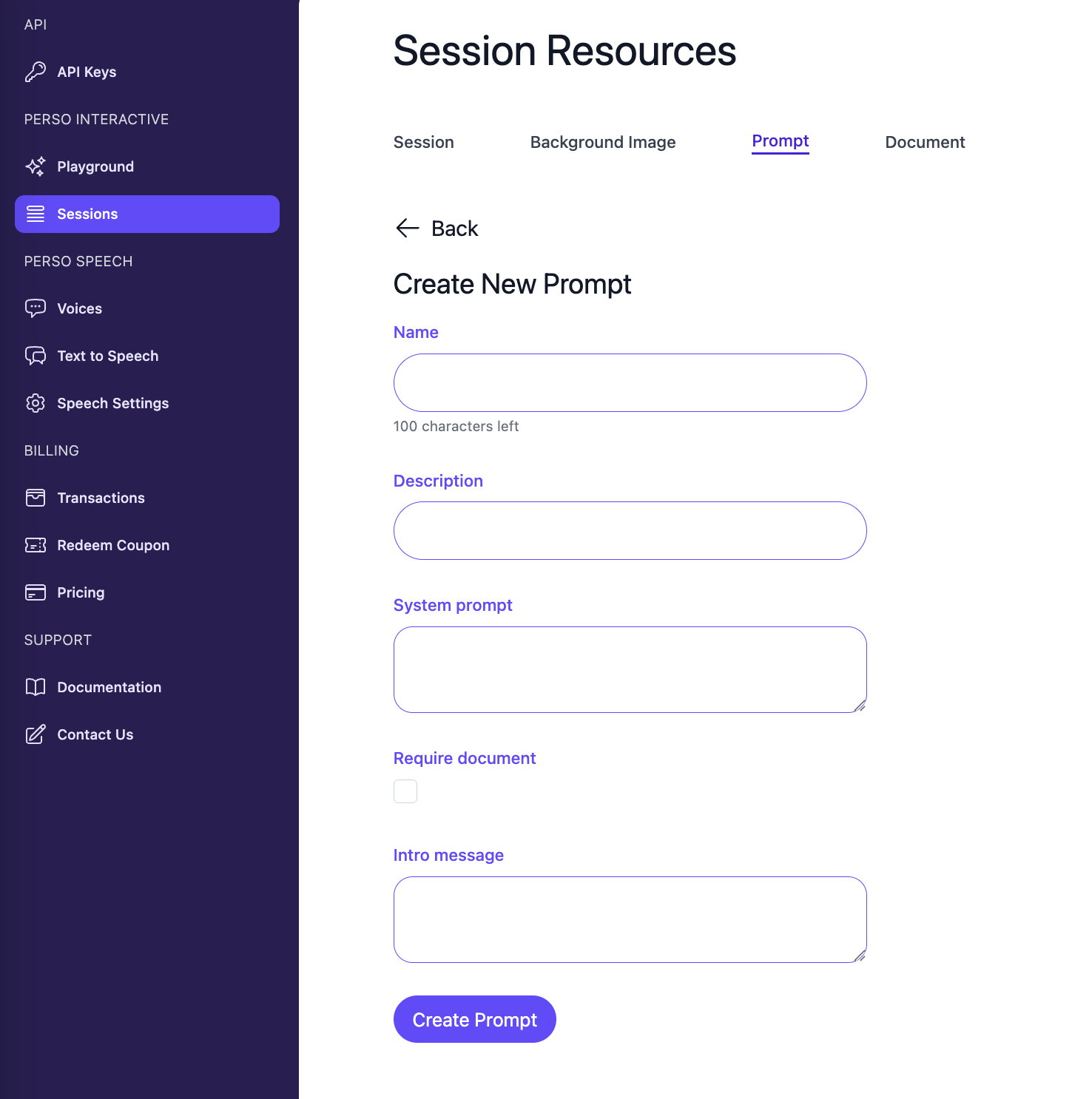
- Click the "Add New Prompt" button from the Prompts list page
- Fill in the form:
Name
Enter a descriptive name for your prompt. This helps you identify and organize different prompts.
Description (Optional)
Provide a brief description of what this prompt is used for. This is helpful for documentation and team collaboration.
System Prompt
The system prompt is the core instruction sent to the LLM. This defines:
- The AI's personality and tone
- The scope of topics it should cover
- How it should respond to different situations
- Any specific guidelines or constraints
Example:
You are a friendly customer service representative for an e-commerce company.
You should be helpful, professional, and concise. Always greet customers warmly
and focus on solving their problems efficiently.
⚠️ Require Document
This checkbox enables Retrieval-Augmented Generation (RAG) for the prompt.
When enabled:
- The system prompt must include a
{context}placeholder - The system will search your documents and replace
{context}with relevant information - This allows the AI to answer questions based on your uploaded documents
Example with RAG:
System Prompt:
You should answer questions regarding fruits using the following data: {context}When a user asks "What is the price of apples?", the system will:
- Search your documents for relevant information about apples
- Replace
{context}with the search results - Send the complete prompt to the LLM
Resulting prompt:
You should answer questions regarding fruits using the following data:
[name]: apple [price]: 3 [description]: honey crisp
Intro Message (Optional)
If provided, the AI Human will automatically deliver this message when a user connects to the session, even before they send any input.
Use cases:
- Greeting users
- Providing initial instructions
- Setting expectations for the conversation
Example:
Hello! I'm here to help you with any questions about our products.
How can I assist you today?
📌 Best Practices
Writing Effective System Prompts
- Be specific: Clearly define the AI's role and responsibilities
- Set boundaries: Specify what topics the AI should and shouldn't discuss
- Define tone: Indicate whether the AI should be formal, casual, friendly, etc.
- Include examples: Provide example interactions when helpful
- Use conditional logic: Guide behavior for different scenarios
Using RAG Effectively
- Always include
{context}: The placeholder is required when RAG is enabled - Structure your prompt: Place
{context}where it makes sense in your instructions - Set expectations: Tell the AI how to use the context data
- Test thoroughly: Verify that document search results are being used correctly
Managing Multiple Prompts
- Create separate prompts for different use cases (customer service, sales, support, etc.)
- Use descriptive names to easily identify prompts
- Review "Last Used At" to identify unused prompts that can be archived
💬 Using Prompts
When creating a new session, you can specify a prompt parameter using the Prompt ID. The selected prompt will be used for all conversations in that session.
❌ Deleting Prompts
To delete a prompt:
- Navigate to the Prompts list
- Click the delete button (trash icon) in the Action column
- Confirm the deletion
Note: Deleting a prompt will not affect existing sessions that were created with that prompt, but new sessions will not be able to use it.
Updated 7 months ago
What’s Next
Learn more about Documents in the next section.