
Getting Started
This guide will walk you through creating a PERSO AI Platform account and generating API keys to start using the services.
Creating Your Account
Navigate to the Perso AI Platform Sign Up page.
Email Verification
- Check your email inbox for a verification message
- Click the verification link in the email
- Your account will be activated
Alternative Sign Up Methods
Depending on your organization's configuration, you may also be able to sign up using:
- Passkey/WebAuthn: Sign up using a passkey for passwordless authentication
- Social Accounts: Sign up using OAuth providers (Google, GitHub, etc.) if enabled
Creating Your First API Key
API keys are required to authenticate API requests and use Services. Each API key is associated with your account and provides access to your organization's resources.
Navigate to API Keys Page
After signing in, navigate to the API Keys page.
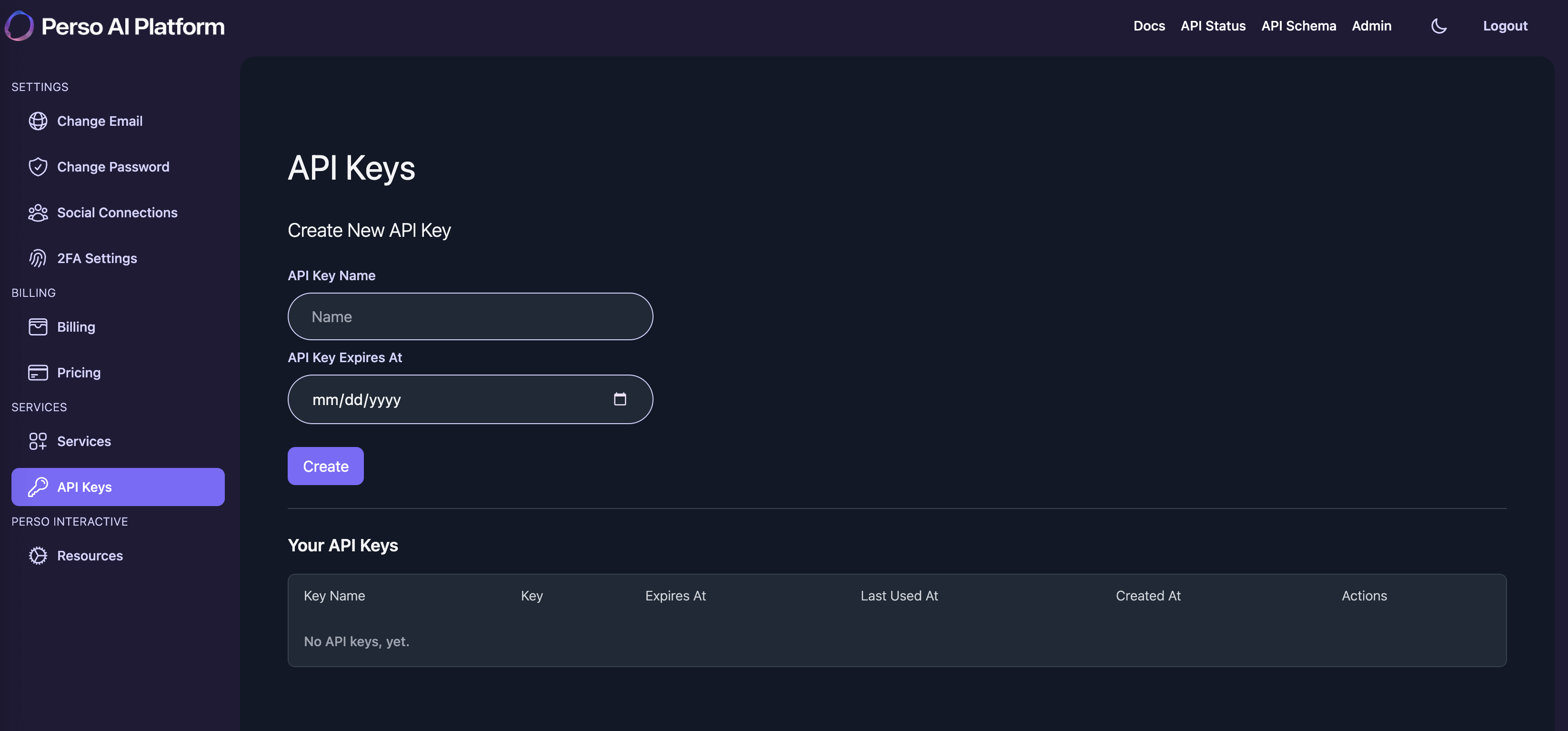
Create a New API Key
-
On the API Keys page, you'll see a form labeled "Create New API Key"
-
Fill in the required information:
API Key Name (Required):
- Enter a descriptive name for your API key
- Examples: "Production API Key", "Development Key", "Mobile App Key"
Expires At (Optional):
- Select an expiration date for the API key
- If left blank, the key will not expire
- Must be a future date if specified
- Recommended for security: Set expiration dates for all keys
-
Click the "Create" button
Save Your API Key
Important: After creation, the API key will be displayed in the "Your API Keys" table.
Security Warning:
- The API key is shown only once in the list
- Copy and securely store your API key immediately
- You cannot retrieve the full key value later if you lose it
- If you lose the key, you'll need to delete it and create a new one
API Key Format
API keys follow this format:
- Customer API Keys:
pak-followed by 32 hexadecimal characters - Example:
pak-a1b2c3d4e5f6g7h8i9j0k1l2m3n4o5p6
Managing API Keys
Viewing Your API Keys
The API Keys page displays a table with all your API keys showing:
- Key Name: The name you assigned
- Key: The full API key value
- Expires At: Expiration date (if set)
- Last Used At: When the key was last used for authentication
- Created At: When the key was created
- Actions: Delete button
Deleting API Keys
To delete an API key:
- Find the API key in the "Your API Keys" table
- Click the "Delete" button in the Actions column
- Confirm the deletion
Note:
- Deleting an API key immediately revokes access
- Any applications using the deleted key will stop working
- You cannot recover a deleted key
- Create a new key before deleting an old one if you need to rotate keys
Updated 4 months ago
What’s Next
Learn about Perso Interactive in the next section.