
Background Images
Background images allow you to customize the visual background of your AI Human video sessions. You can upload images and select them when creating a session to create a personalized experience.
💡 Overview
Background images are displayed behind the AI Human in video sessions. They help create context and enhance the visual presentation of your conversations.
🗒 Listing Background Images
Navigate to the Resources page and select the "Background Images" tab to view all background images in your organization.
The list displays:
- Background Image ID: Unique identifier for the image
- Title: The name you assigned to the image
- Image: A thumbnail preview of the image
- Action: Delete button to remove the image
🔎 Viewing Background Image Details
Click on a Background Image ID to view its details. From the detail page, you can:
- View the full image
- Edit the title
- Delete the image
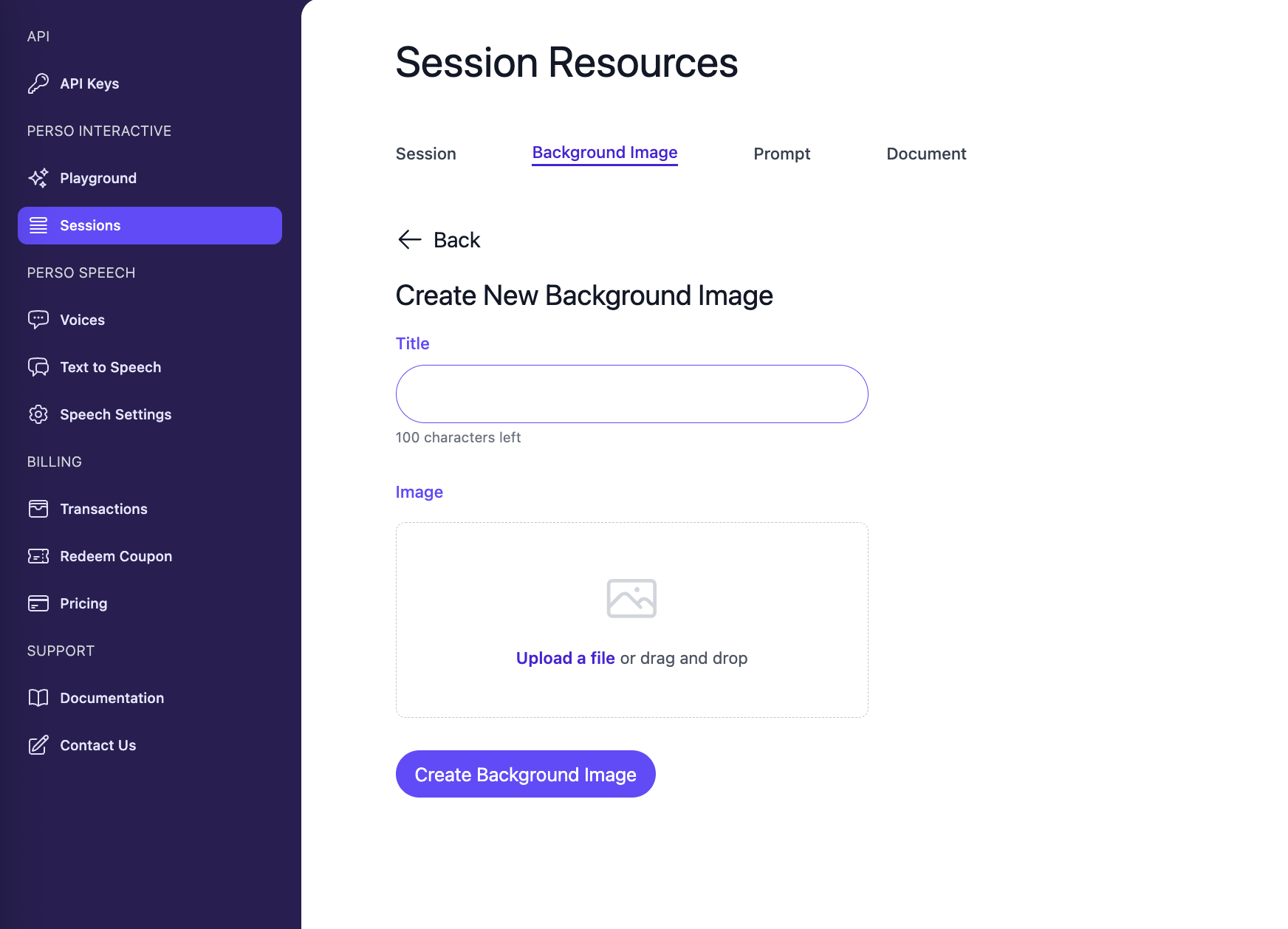
🌄 Creating Background Images
To upload a new background image:
- Click the "Upload" button from the Background Images list page
- Fill in the form:
- Title: Enter a descriptive name for your background image
- Image: Select an image file to upload
Image Requirements
- Aspect Ratio: 16:9 (landscape) or 9:16 (portrait) is recommended
- Resolution: FHD (1920 x 1080) or higher is recommended for best quality
- Format: Common image formats (JPG, PNG, etc.) are supported
- Size: It should be less than 5 mb.
The image will be automatically scaled to fill the canvas during video sessions.
Best Practices
- Use high-resolution images for better quality
- Ensure the image doesn't distract from the AI Human
- Test different backgrounds to find what works best for your use case
- Consider the aspect ratio of your target display when choosing images
🖼️ Using Background Images
When creating a new session, you can specify a background_image parameter using the Background Image ID. The selected image will be used as the background for that session.
❌ Deleting Background Images
To delete a background image:
- Navigate to the Background Images list
- Click the delete button (trash icon) in the Action column
- Confirm the deletion
Note: Deleting a background image will not affect existing sessions that were created with that image, but new sessions will not be able to use it.
Updated 4 months ago
What’s Next
Learn more about Prompts in the next section.