
Document
Documents enable Retrieval-Augmented Generation (RAG) in PERSO Live, allowing your AI Human to answer questions based on your uploaded data. The system searches through your documents to find relevant information and includes it in the LLM's context.
💡 Overview
When you upload a document, Perso Interactive:
- Processes the document and splits it into searchable items
- Generates vector embeddings for semantic search
- Makes the document available for use in prompts with RAG enabled
Documents are particularly useful for:
- Product catalogs and specifications
- FAQ databases
- Company knowledge bases
- Any structured data you want the AI to reference
🗒 Listing Documents
Navigate to the Resources page and select the "Document" tab to view all documents in your organization.
The list displays:
- Document ID: Unique identifier for the document
- Title: The name you assigned to the document
- Search Count: Number of document items to include in searches (default: 3)
- Processed: Whether the document has been processed and is ready to use
- Action: Delete button to remove the document
🔎 Viewing Document Details
Click on a Document ID to view its details. From the detail page, you can:
- View document information
- See processing status
- Delete the document
📝 Creating Documents
To upload a new document:
- Click the "Add New Document" button from the Documents list page
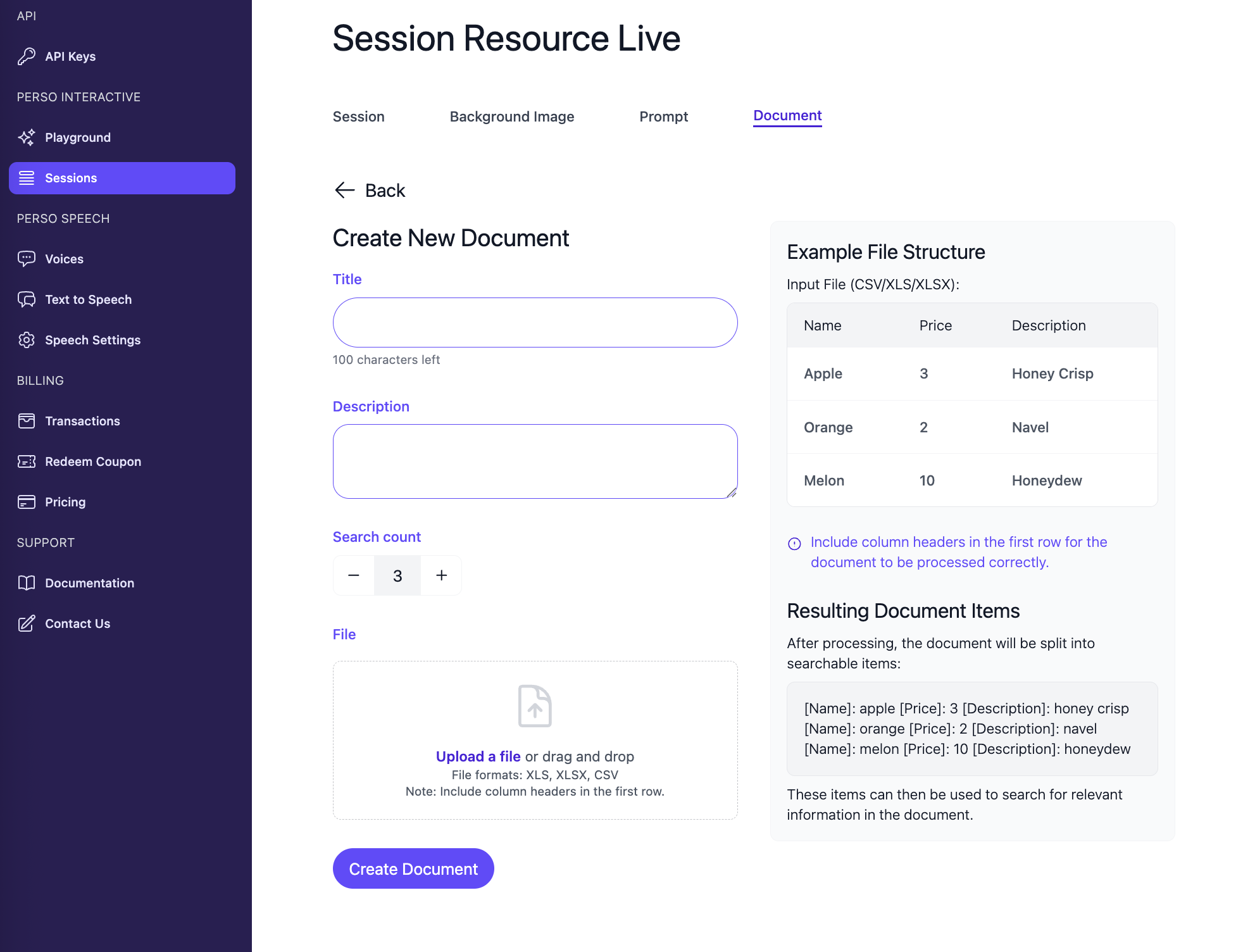
- Fill in the form:
✍️ Title
Enter a descriptive name for your document. This helps you identify and organize different documents.
✏️ Description (Optional)
Provide a brief description of what this document contains and its purpose.
📊 File
Upload a file containing your data. The file will be processed to extract information.
File Format Requirements
- Accepted Formats: CSV, XLS, XLSX
- Structure: The first row must be used as the header row
- Encoding: UTF-8 encoding is recommended
Example File Structure
Input File (CSV/XLS/XLSX):
| name | price | description |
|---|---|---|
| apple | 3 | honey crisp |
| orange | 2 | navel |
| melon | 10 | honeydew |
Resulting Document Items:
After processing, the document will be split into searchable items:
[name]: apple [price]: 3 [description]: honey crisp[name]: orange [price]: 2 [description]: navel[name]: melon [price]: 10 [description]: honeydew
Each row becomes a searchable document item that can be retrieved when relevant to user queries.
🔢 Search Count
This setting determines how many relevant document items will be included in the LLM's context when a user query matches the document.
- Default: 3
- Range: Adjustable based on your needs
- Recommendation:
- Use 3-5 for most cases
- Increase for complex queries that may need more context
- Decrease if you want more focused responses
🔄 Document Processing
After uploading a document:
- Processing begins automatically: The system starts processing your document immediately
- Splitting into items: Each row becomes a separate searchable item
- Generating embeddings: Vector embeddings are created for semantic search
- Status update: The
processedfield is set toTruewhen complete
Processing time:
- Small documents (< 100 rows): Usually completes in under a minute
- Medium documents (100-1000 rows): May take several minutes
- Large documents (> 1000 rows): Can take 10+ minutes
Note: Documents are not available for use until processing is complete. Check the "Processed" status in the list view.
📋 Using Documents with RAG
To use documents in your sessions:
-
Enable RAG in your Prompt:
- Create or edit a prompt
- Check the "Require Document" option
- Include
{context}placeholder in the system prompt
-
Create a Session:
- Use a prompt that has RAG enabled
- The system will automatically search your documents when users ask questions
-
How it works:
- User asks a question
- System searches documents for relevant items
- Top N items (based on Search Count) are included as
{context} - LLM generates response using the context
📌 Best Practices
Preparing Your Data
- Use clear headers: Column names should be descriptive
- Keep data structured: Each row should represent a complete item
- Include relevant information: Add columns that users might ask about
- Avoid empty cells: Fill in all relevant fields for better search results
Organizing Documents
- One document per topic: Keep related data together
- Descriptive titles: Make it easy to identify document contents
- Regular updates: Keep documents current with latest information
- Test after upload: Verify document items are searchable
Optimizing Search Count
- Start with default (3): Test with the default value first
- Adjust based on results:
- Increase if responses lack context
- Decrease if responses are too verbose
- Consider document size: Larger documents may benefit from higher search counts
Example Use Cases
Product Catalog:
- Upload product information (name, price, description, features)
- Enable RAG in your prompt
- AI can answer questions about products using the catalog
FAQ Database:
- Upload common questions and answers
- AI can provide accurate answers from your FAQ
Company Knowledge Base:
- Upload company policies, procedures, or information
- AI can reference this information when answering questions
❌ Deleting Documents
To delete a document:
- Navigate to the Documents list
- Click the delete button (trash icon) in the Action column
- Confirm the deletion
Note: Deleting a document will not affect existing sessions, but new queries will no longer be able to search that document's content.
Updated 7 months ago
What’s Next
Learn more about Model Resources in the next section.